

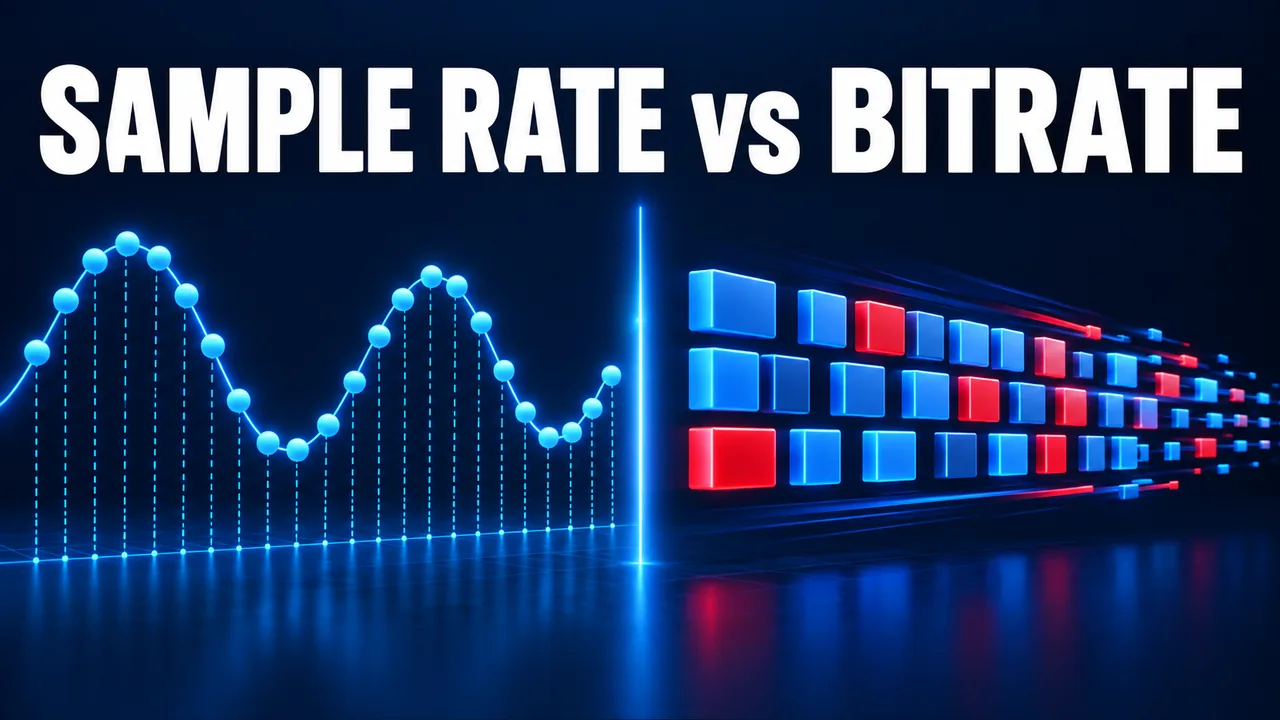
Sample Rate vs Bitrate: What Changes in an Audio File?
Quick answer: sample rate counts how often a digital audio signal is measured each second, while bitrate describes how much encoded data is used each second. A file can have a 44.1 kHz sample rate and a 192 kbps MP3 bitrate at the same time. Neither number alone tells you whether the original recording sounds good.
Start with two different questions
Sample rate answers, “How many audio samples are represented per second?” Its unit is hertz. A value of 44.1 kHz means 44,100 samples per second for each channel. Bitrate answers, “How many bits per second does this compressed audio stream use?” Its usual unit is kbps. These measurements describe different stages of a digital audio workflow, which is why comparing 44.1 kHz with 192 kbps as though they were competing quality scores makes no sense.
Imagine recording a short spoken introduction. The capture system samples the microphone signal at a chosen rate. Later, an encoder compresses that audio into MP3. The encoded stream receives a bitrate or a variable-quality target. Sample rate still appears in the finished file, but the compressed bitrate determines much of the expected storage use. The MP3 bitrate and file-size guide shows a simple storage calculation.
What sample rate can and cannot tell you
A sample rate places a theoretical ceiling on the frequencies a sampled signal can represent. In a well-designed digital audio system, that ceiling is half the sample rate, often called the Nyquist frequency. This does not mean every recording contains useful information all the way to that ceiling. A telephone-quality source, a quiet lecture, or a heavily compressed upload may contain less audible detail than the file format could technically hold.
Raising the sample-rate setting after a recording was made does not recreate absent frequencies. If a source was captured at 44.1 kHz, saving a copy at 96 kHz adds sample points through resampling, not newly captured performance detail. It can be necessary to match a production workflow, but it is not a repair method. The same principle applies to bitrate: exporting a low-bitrate MP3 to a larger high-bitrate MP3 does not reverse earlier lossy compression.
For routine listening, compatibility and avoiding unnecessary conversions often matter more than chasing the highest sample-rate value shown in a settings menu. If your playback device handles the source format correctly, keep the original authorized file where possible. If you must make a derivative for a device, document what changed so you do not later mistake the derivative for the source.
Why bitrate affects compressed file size
For constant-bitrate MP3, each second is assigned approximately the same encoded data rate. Multiply that rate by the running time to estimate the stream size. At 192 kbps, ten minutes of audio accounts for roughly 14.4 MB of encoded audio before artwork and metadata. That is a storage calculation, not a listening test. Variable-bitrate files can be less predictable because their data rate changes over time.
Bitrate has a relationship with the room an encoder has to represent sound, but it is only one part of the result. A clean source, sensible encoder, appropriate channel layout, and honest listening comparison are important. Two files with the same kbps value may differ because one started from a lossless master and the other from a previously compressed stream. A high number in a file-properties window cannot verify provenance.
Read file properties without mixing up labels
Many operating systems expose basic media properties through an information panel. Look for codec or format, duration, sample rate, channel count, and bitrate. If a field is absent, do not assume a default. A more detailed media inspector can show the values reported by the stream itself. Check whether a displayed bitrate belongs to an audio stream or to an entire video container that includes picture and sound.
For a downloaded file, complete the verification with playback. Open it in a trusted local player, seek near the middle and end, and listen for truncation, glitches, or unexpected content. File properties answer technical questions, but they do not replace checking that the right recording arrived. Our MP3 download inspection checklist turns those checks into a repeatable routine.
Common questions
Is 48 kHz automatically better than 44.1 kHz?
No. Both are common sample rates in media work, and the best choice depends on the source and production chain. Changing between them for a final copy introduces resampling. If you do not have a workflow requirement, preserving the source rate avoids an unnecessary step. Audible quality also depends on factors that the displayed sample-rate value cannot reveal.
Does higher bitrate mean louder audio?
No. Loudness concerns signal level and perception, not the number of encoded bits per second. A 320 kbps file can play more quietly than a 128 kbps file if the underlying audio levels differ. Read why converted audio sounds quieter before changing volume or re-encoding an archive.
Can an MP4 video have a separate audio sample rate and bitrate?
Yes. A video file can contain multiple streams with their own properties. Inspect the audio stream rather than judging it by the total video bitrate. If you are deciding between an audio-only copy and a video file you have permission to retain, the YouTube to MP4 guide can help you plan what you actually need.
Use sample rate and bitrate as complementary facts, not as rivals. Read both alongside source quality, codec, channels, and playback results. For an authorized personal copy, preserve the best source you have and make only the conversions required by your device or workflow. That simple habit prevents a bigger number from becoming a misleading substitute for better sound.
To search for a recording or convert a YouTube link you are permitted to use, start with Ytmp3 and review the available download options.